Showing posts with label Oki. Show all posts

Saturday, November 25, 2023

How to print a configuration page from an Okifax 5300

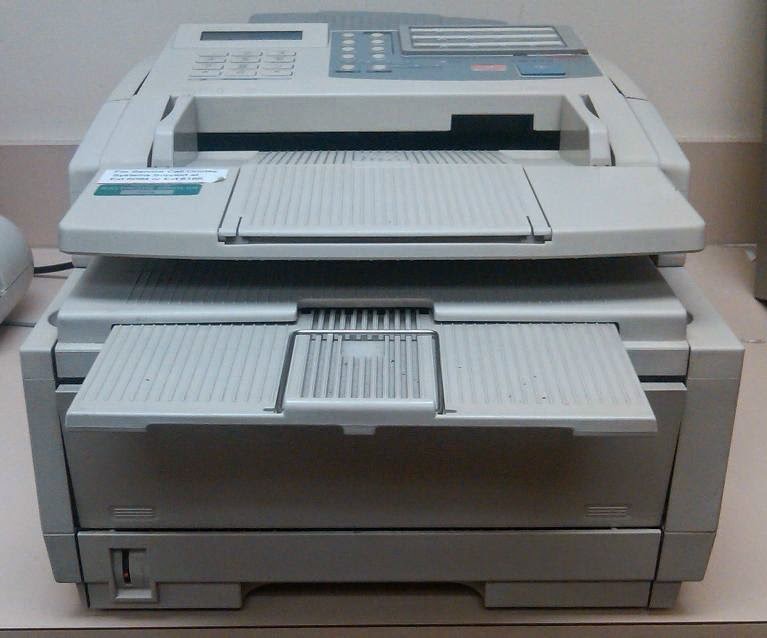
Okifax 5300

If you want to see at a glance how your Okifax 5300 fax machine is configured, you can print out a configuration page, rather than have to scroll through all of the menu settings and view them one by one.  Printing a configuration page does not use a lot of toner, and it gives you a good overview of the machine's settings.

Unlike with many fax machines and printers, the configuration page for an Okifax 5300 does not display the machine's page count.  For instructions on how to view the page count, see How to get the page count for an Okifax 5300.

  • Press the SELECT FUNCTION button, located toward the top of the operation panel (to the right of the display screen).
  • On the number pad in the upper right area of the operation panel, press the 6 button (also labeled REPORT PRINT).
  • The screen will display "1: ACTIVITY REPORT".  Press the right arrow button (the NO button) on the operation panel three times to scroll through the various reports, until you get to "4: CONFIGURATION".
  • Press the left arrow button (YES) to print the configuration report.  "PRINTING" will appear on the screen, and the configuration page will print out shortly.
  • Press the STOP button (the red button to the left of the START button) twice to exit out of the menu and return to the main screen.

The configuration page doesn't list every setting but it has many of the most common ones, including whether error correction is turned on, whether an image is printed with the confirmation page, the number of redial tries, and what the volume is set to.


(Originally published on Helium.com, 2011)

Monday, January 15, 2018

Oki C610 / C711 configuration page

To print a configuration page from an Oki C610 or C711 printer:

- Press the up arrow or down arrow menu scroll button to enter the menu.
- Scroll up or down until you see the Print Information menu.  Press the Enter button to select it.
- Configuration should be the first option; press the Enter button to select it and print out the configuration report.

To print a usage page instead (which includes the page count) scroll down to Usage Report instead of Configuration and press Enter to select it.

Tuesday, November 17, 2015

Oki B6300 page count

To view the total page count for an Oki B6300 printer:

- Press the Menu button
- Press the down arrow button until Meter Reading is displayed
- Press the right arrow button to display the counter

Thursday, October 22, 2015

Oki B6300 configuration page

The configuration page for an Oki B6300 printer is called a system settings list.  The system settings list contains a lot of information about the printer, including serial number, toner gauge, firmware level, page counter, and various print and network settings.

To print the system settings list from an Oki B6300:

- Press the Menu button
- Press the down arrow button until Report/List appears
- Press the right arrow button
- Press the down arrow button until System Settings appears
- Press the right arrow button
- Press the Feed/Select button

Friday, May 1, 2015

How to view the page count on an Okifax 5300 / Okifax 5650

On the Okifax 5300 and Okifax 5650 (as well as other similar Okifax models) you can view the device's page count directly on the display screen.  To see the page count:


- Press the SELECT FUNCTION button (to the right of the display screen, toward the top of the operation panel).
- On the upper right keypad, press the 7 button.  (Below this button it says "COUNTER DISPLAY".)
- "DRUM COUNT" will appear on the screen; press the right arrow button (marked "NO") and the display will change to "PRINT COUNT", followed by the current page count in six-digit format.


If you want to see the number of pages that have been scanned into the fax machine instead of the number of pages printed out, press the NO button again, and "SCAN COUNT" will be displayed, followed by the number of scanned pages.

(Originally published on Helium.com, May 2011)

Tuesday, December 23, 2014

Oki MB451w configuration page

To print a configuration page from an Oki MB451w multifunction printer:

- Press the Setting button.  (If the machine was idle, you may have to press the button once to wake it up, and then again to go to the settings menu.)

- "Reports" is the highlighted option; press the OK button to select it.  (If "Reports" isn't highlighted, scroll down until it is.)

- "Configuration" is the highlighted option; press the OK button to select it.  (If "Configuration" isn't highlighted, scroll down until it is.)

- When asked if you want to print the configuration page, press the OK button to confirm your choice.

Monday, August 27, 2012

Printer, copier, and fax machine user manual links

Most copier and printer manufacturers make PDF versions of their products' user manuals available online, in case yours didn't come with a manual or it got lost somehow.  Below are links to find manuals for different brands of copiers, printers, and fax machines.

- Brother
- Canon
- Dell
- HP
- Konica Minolta
- Kyocera
- Lexmark
- Océ
- Oki
- Okidata
- Panasonic
- Pitney Bowes
- Ricoh
- Samsung
- Sharp
- Source Technologies
- Toshiba
- Xerox

Friday, July 20, 2012

Updates

Configuration page instructions for the following printers, copiers, and fax machines were added this week:

- Konica Minolta bizhub 600
- Lexmark E250d
- Muratec F-520
- Okifax 5400
- Sharp MX-M264N

Wednesday, July 18, 2012

Okifax 5400 configuration page

To print a configuration page from an Okifax 5400 fax machine:

- Press the Select Function button.
- Press the Report Print button (number 6 on the quick dial number pad).
- Press the No button (the one with the right arrow on it) until "Configuration" appears on the screen.
- Press the Yes button (the one with the left arrow on it).

Okifax 5400 page count

To see the page count for an Okifax 5400:

- Press the Select Function button.
- Press the Counter Display button (number 7 on the quick dial number pad).
- Press the No button (with the right arrow on it) until "Print Count" appears on the screen, followed by the page count.